I’m rebuilding part of my AWS setup and figured this was a good time to write this down instead of relying on memory and vibes. Any time I need a clean Docker environment to test images or mess around without breaking anything important, I really don’t want to be clicking through the AWS console or babysitting a server.
The problem is always the same. I need an Ubuntu box, Docker installed, basic access set up, and I need it quickly. Doing this manually means clicking through EC2, setting up security groups, opening ports, SSH’ing in, installing Docker, and then deciding what to do with the instance when I’m done.
If I leave it running, I’m paying for something I don’t need anymore. If I terminate it, I know I’m going to have to repeat the whole process the next time. Neither option is great.
So instead of solving this problem every single time, I solved it once.
Now I spin up a disposable Ubuntu Docker host with a single Terraform command, and I tear it down just as easily when I’m done. No shared environments. No leftovers. No wondering what state the box is in when I come back.
This post walks through how I set that up and why this keeps coming up once you start caring about repeatability.
What I wanted:
- A Clean Ubuntu EC2 instance
- Docker installed automatically
- SSH access locked to my IP
- Something I can destroy without thinking twice
Like I said earlier, I didn’t want:
- Clicking around the AWS console
- Long lived instances
- Manual docker installs or thinking “I’ll remember how I did this the last time”.
The approach
I tried to keep it as clean as possible by using the folder structure in the screenshot below. Firstly, because I am writing this, and secondly to make life easier for future me.
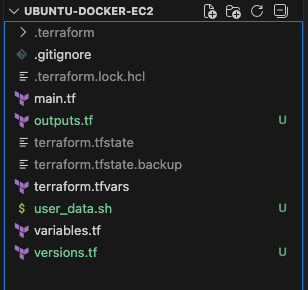
Each file in the screenshot has a purpose. versions.tf points to what versions will be locked, variables.tf what inputs can change, main.tf what infrastructure exists, user_data what configuration runs on boot, and outputs.tf what outputs I care about once it is up.
Picking the Ubuntu AMI without hardcoding it
I didn’t want to hardcode an AMI ID because they change constantly.
So I Googled:
- “aws ubuntu 22.04 ssm parameter ami”
SSM parameter used:
/aws/service/canonical/ubuntu/server/22.04/stable/current/amd64/hvm/ebs-gp2/ami-id
Pulling the Ubuntu AMI from SSM avoids hardcoding IDs and silently keeps this up to date. I don’t want to think about AMIs unless something actually breaks.

Using the default VPC
I used the default VPC simply because this is a Docker test box. Introducing custom networking here would add complexity without changing the outcome.
For this, I Googled:
- “terraform aws default vpc data source”
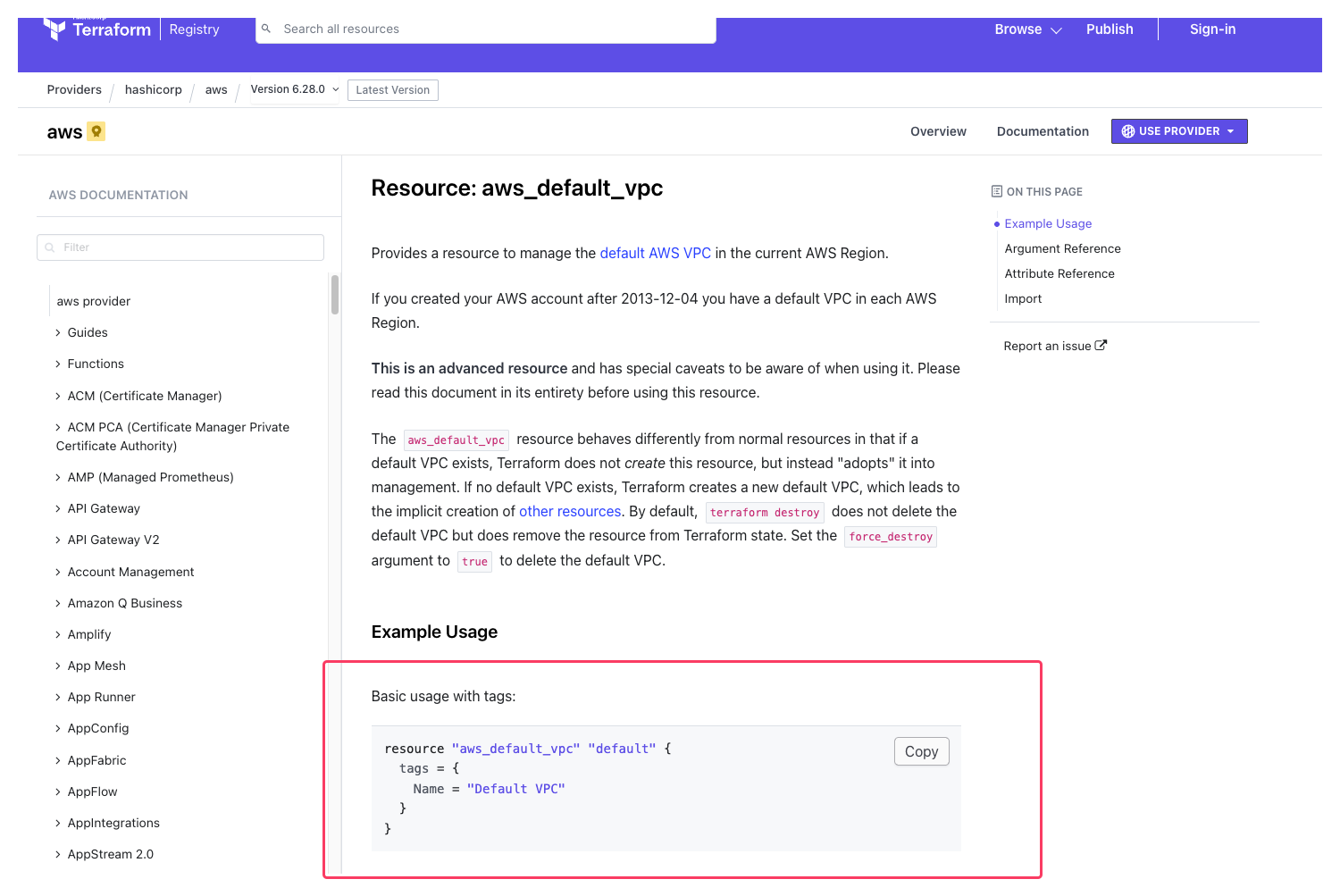
Terraform configuration
versions.tf
terraform {
  required_version = ">= 1.5.0"

  required_providers {
    aws = {
      source  = "hashicorp/aws"
      version = "~> 5.0"
    }
  }
}
I keep provider and Terraform version constraints in their own file so compatibility decisions are visible at a glance. When something breaks after an upgrade, this is the first place I look.
variables.tf
variable "region" {
  type    = string
  default = "us-east-1"
}

variable "instance_type" {
  type    = string
  default = "t3.micro"
}

variable "ssh_cidr" {
  type = string
}

variable "key_name" {
  type = string
}

variable "name" {
  type    = string
  default = "docker-lab"
}
Anything that might reasonably change between runs becomes a variable. Region, instance type, SSH source IP, and key pair are all environment specific, even for a small lab like this.
Hardcoding those values just guarantees future edits.
main.tf
provider "aws" {
  region = var.region
}

data "aws_vpc" "default" {
  default = true
}

data "aws_subnets" "default" {
  filter {
    name   = "vpc-id"
    values = [data.aws_vpc.default.id]
  }
}

data "aws_ssm_parameter" "ubuntu_ami" {
  name = "/aws/service/canonical/ubuntu/server/22.04/stable/current/amd64/hvm/ebs-gp2/ami-id"
}

resource "aws_security_group" "this" {
  name   = "${var.name}-sg"
  vpc_id = data.aws_vpc.default.id

  ingress {
    from_port   = 22
    to_port     = 22
    protocol    = "tcp"
    cidr_blocks = [var.ssh_cidr]
  }

  egress {
    from_port   = 0
    to_port     = 0
    protocol    = "-1"
    cidr_blocks = ["0.0.0.0/0"]
  }
}

resource "aws_instance" "this" {
  ami                    = data.aws_ssm_parameter.ubuntu_ami.value
  instance_type          = var.instance_type
  subnet_id              = data.aws_subnets.default.ids[0]
  vpc_security_group_ids = [aws_security_group.this.id]
  key_name               = var.key_name

  user_data = file("${path.module}/user_data.sh")

  tags = {
    Name = "${var.name}-ubuntu-docker"
  }
}
main.tf describes infrastructure, it shows what resources exist and how they relate. Using the default VPC here is a tradeoff I’m comfortable with. The environment is disposable, and over engineering it wouldn’t make it more useful.
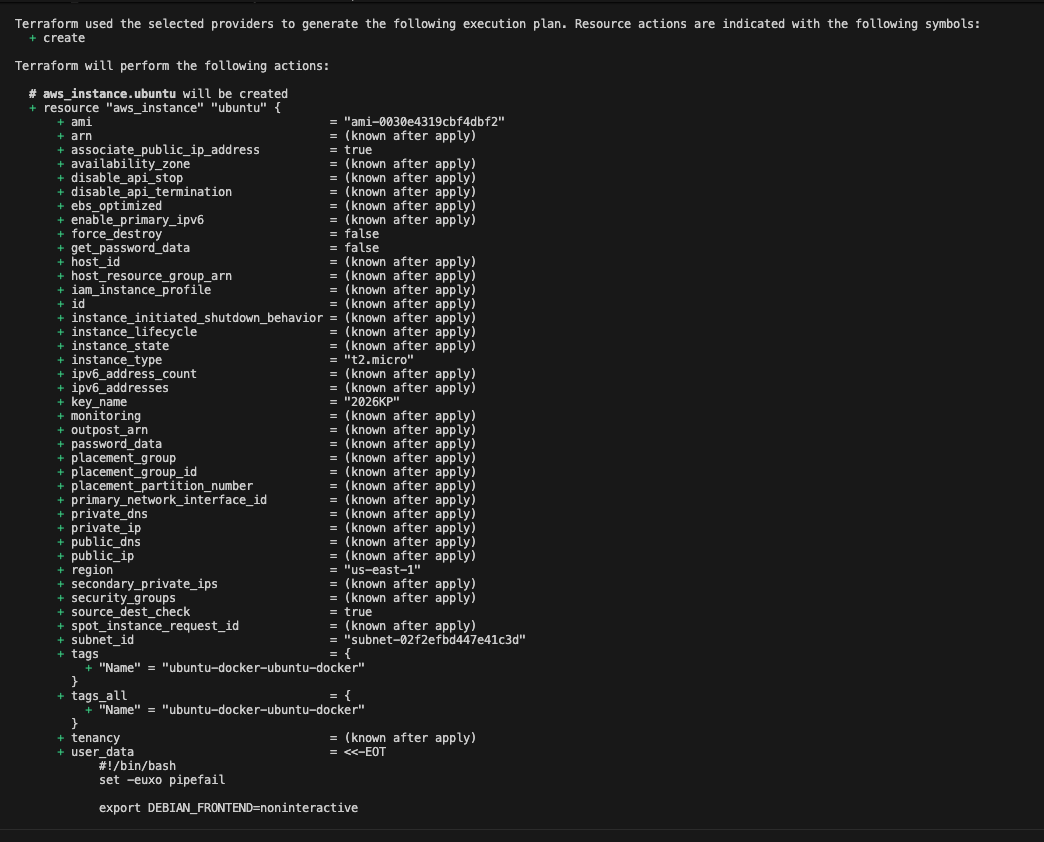 Result from running
 terraform plan
user_data.sh
#!/bin/bash
set -e

apt-get update -y
apt-get install -y ca-certificates curl gnupg

install -m 0755 -d /etc/apt/keyrings
curl -fsSL https://download.docker.com/linux/ubuntu/gpg | gpg --dearmor -o /etc/apt/keyrings/docker.gpg
chmod a+r /etc/apt/keyrings/docker.gpg

echo "deb [arch=$(dpkg --print-architecture) signed-by=/etc/apt/keyrings/docker.gpg] https://download.docker.com/linux/ubuntu $(. /etc/os-release && echo "$VERSION_CODENAME") stable" | tee /etc/apt/sources.list.d/docker.list > /dev/null

apt-get update -y
apt-get install -y docker-ce docker-ce-cli containerd.io docker-buildx-plugin docker-compose-plugin

usermod -aG docker ubuntu
systemctl enable docker
systemctl start docker
Docker is installed via user_data so I’m not SSH’ing in just to finish setup.
outputs.tf
output "public_ip" {
  value = aws_instance.this.public_ip
}

output "ssh_command" {
  value = "ssh -i <path-to-key.pem> ubuntu@${aws_instance.this.public_ip}"
}
Even for a small setup, outputs reduce friction. Seeing the public IP and SSH command immediately keeps me out of the AWS console.
Spinning it up
terraform init
terraform plan
terraform apply
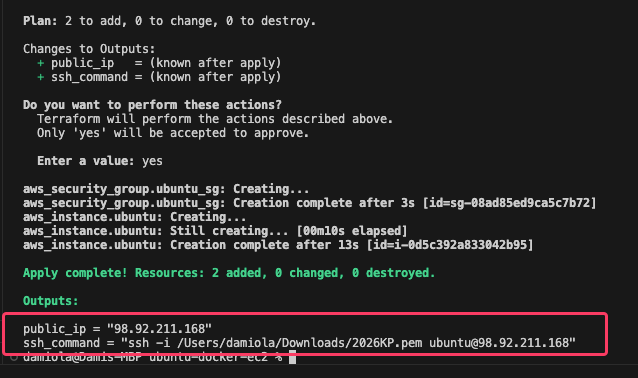
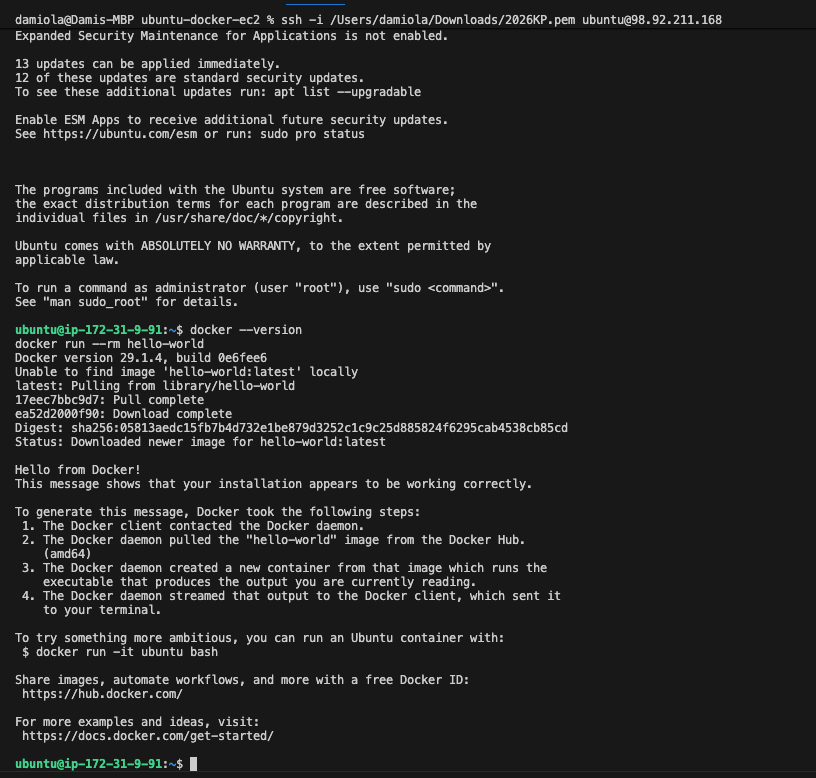
SSH and verify Docker
ssh -i /path/to/key.pem ubuntu@<PUBLIC_IP>
docker --version
docker run --rm hello-world
Tear it down
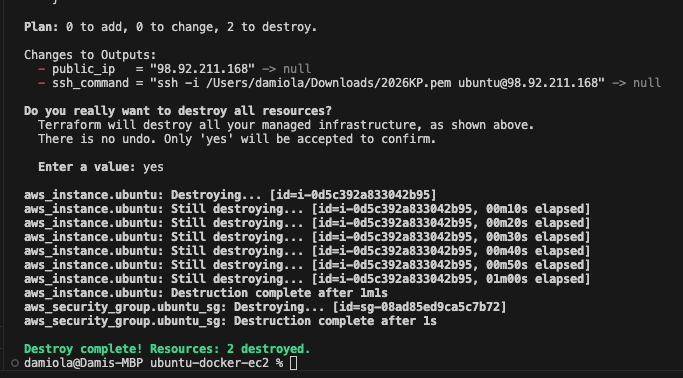
terraform destroy
If tearing it down feels heavy, that’s usually a sign I overdid it.
Why this ends up being worth it
Once you’ve rebuilt the same environment a few times, you start to notice how much time goes into setup instead of the work you actually care about. Disposable infrastructure removes that friction. I can spin it up, use it, tear it down, and move on.
Code for the setup is available here